




Shopify is always evolving, with new features and updates rolling out regularly to help retailers stay ahead—but keeping up shouldn't be a chore. That's why this hub tracks every POS update and relevant Shopify changes in one place.
Every two weeks, Shopify releases an updated POS version and this post is refreshed to highlight what's new. If you have multiple retail locations, it's best practice to use an MDM (Mobile Device Management) to manage app versions, and to test each new release on a few devices before rolling it out to all stores. To see previous months' updates, scroll to the bottom of this post.
Updates in POS version 11.17 and 11.18
Updates in POS version 11.18 (October 26, 2026 release date)
It’s that time of year: We have paused major releases to the POS app for the rest of 2026, and Shopify POS versions 11.18 and 11.19 focus on behind-the-scenes bug fixes and reliability improvements only. This means no changes to POS app features during your busy season, so you can focus on what matters.
These quieter releases are about further refining the experience for smoother customer flows with fewer interruptions, but we'll continue to add retail-relevant changes from the Shopify platform to the Retail Roundup monthly until January.
Updates in POS version 11.17 (October 13, 2026 release date)
Get tile suggestions for the smart grid

What changed: Shopify can now suggest smart grid tiles for products and discounts your staff frequently use, based on your store’s own POS activity. Add suggestions directly from the Add tile flow in POS, or review them alongside your smart grid in the POS editor in Shopify Admin. You decide what gets added or removed, your smart grid never changes unless you choose to update it.
Why it matters: Spend less time setting up and maintaining Smart Grid, and help staff reach commonly used products, variants, and discounts faster.
Access: Available in POS v11.17 through POS Editor. Suggestions are visible to users who already have permission to edit the smart grid.
Learn more about Smart Grid suggestions
Recognize customers and simplify receipts
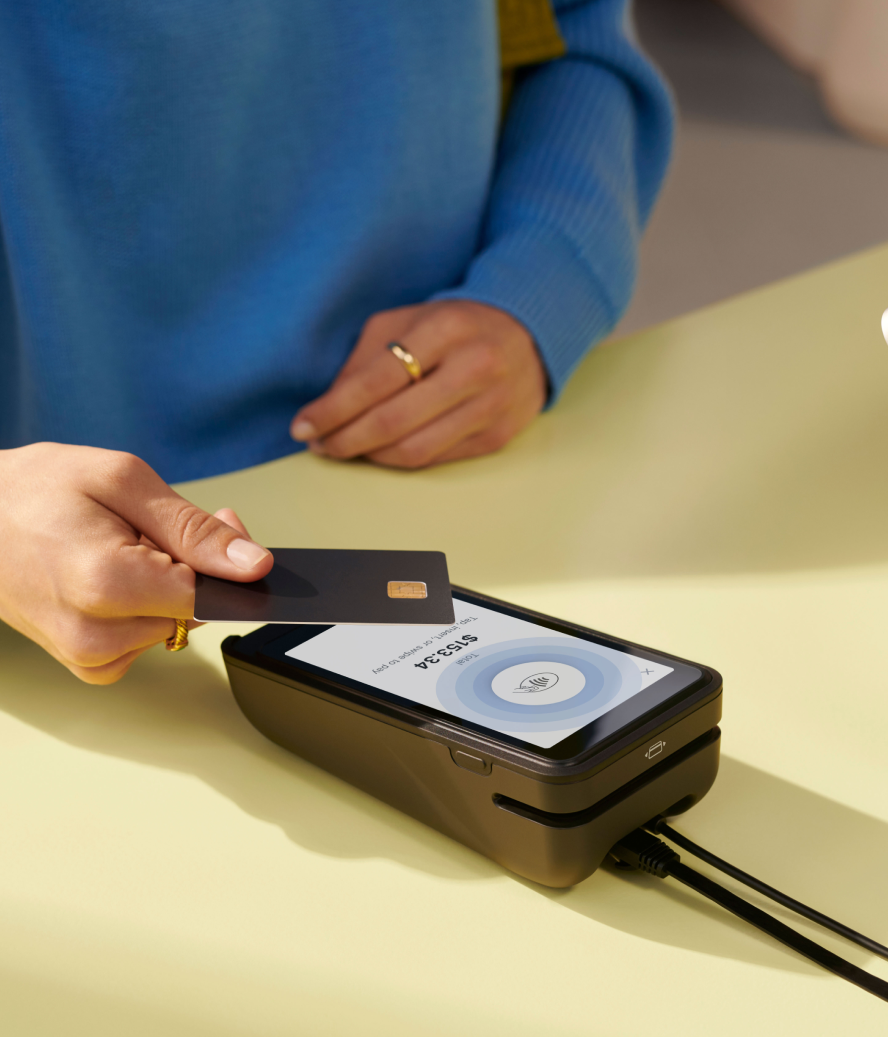
What changed: POS now automatically identifies more of your in-store customers at checkout. When a buyer taps their card, Shopify can recognize and add them to your customer list after they select a digital receipt.
Repeat customers will be automatically associated with an order, and for Shop Pay customers, in-store receipts will be automatically sent to Shop after an initial one-time consent.
All buyers can also sign up for marketing, news, and updates from the receipt selection screen.
Why it matters: Identifying customers automatically saves store staff time asking for customer details at the register, so a buyer gets added to your customer list without slowing down the line, and past orders can be connected to a repeat customer’s purchase history.
With more known customers you can identify who your repeat buyers are, and if they opt in to marketing, bring them back, increase repeat orders, and grow lifetime value.
Access: Available for eligible Shopify Payments card transactions in POS v11.17. Turned on by default if you have a customer-facing display like Victa Mobile or POS Terminal, or when customer receipt selection is enabled in the POS sales channel in admin.
Learn more about customer recognition and digital receipts
Add product variants and shortcuts to the smart grid
What changed: Shopify POS now lets merchants add specific product variants directly to the smart grid, so staff can add frequently sold variants to the cart with one tap. New shortcut tiles also give staff direct access to Analytics, Register, and Scan, while Pickup and Local delivery tiles now open the orders list directly.
Why it matters: Staff can spend less time repeatedly selecting variants or navigating through menus to get to the tools they use throughout the day. Merchants can customize the smart grid around how their store actually works, making common products and everyday tasks easier for staff to find.
Access: Available to all merchants on POS v11.17 or later. Merchants can add the new tiles from the POS editor in Shopify Admin or directly from the POS app. Analytics requires POS Pro and the appropriate staff permissions. Existing smart grids won’t change automatically.
Learn more about customizing the smart grid
See past updates
September 2026 (V11.15 & V11.16)
August 2026 (V11.12, V11.13 & V11.14)

